Changelog
Changes to the book's content
- : uploaded to site
Introduction
This is a walkthrough for setting up and managing an online multiplayer server for Sonic Robo Blast 2 Kart (from here on, Sonic Kart) so you can play online with privacy and stability for everyone.
The main sections are Preparation and Walkthrough. Everything else is advice and info on maintaining your server once it's up and running.
This will get a little technical, but really you just need to copy and paste bits of code and hit Enter, and occasionally enter a password.
This walkthrough's only for making a private server. You'll need to do extra work to add your server to the game's server browser.
Requirements
You will need:
- the game on your computer
- a few dollars per month (at most) to pay for hosting
- a file transfer app (e.g. FileZilla)
Preparation
There's a few steps to take before getting underway. You should only need to do these once no matter how many servers you make.
Organising your files
Before setting up the server, organise the files you're going to transfer—config, addons, and a few other things.
- Download and unzip this mostly-empty server template.
- Enter the
serverfolder. - Transfer your addons into the subfolders in
./server/addons. - Write your game config in
./server/config/kartserv.cfg.
All your addons must go into subfolders of the addons folder, not directly in the addons folder. However, you can add, remove, or rename subfolders in the addons folder, and even add more subfolders inside them.
Getting hosted
One easy way to run an independent kart server is on a cheap commercial virtual private server (VPS). There's a few hosts around that let you quickly and cheaply set up a VPS; I use DigitalOcean, and I know the server setup code currently works out of the box on their hosting.
Either way, make an account on your host.
Walkthrough
For a shorter version without explanations, check the Cliff Notes.
Server space
First, set up your VPS (on DigitalOcean this is called a “droplet”). Your host should have a guide to help you do this. For location, choose somewhere closest to your players. For image, choose the default. For plan, choose the cheapest that has at least these specs:
- 1 core/CPU
- 1 GB RAM
- 25 GB SSD storage
- 1 TB per month upload/download (a.k.a transfer)
- must have an IPv4 address (IPv6 doesn't matter, but the game only connects directly through v4)
Finally, for security, create a password (SSH is probably unnecessary).
For my server I use a DigitalOcean droplet in New York running the Basic plan (shared CPU) with the specs above. This costs $6 per month of full uptime (early 2025), but the real cost's much lower because I don't have full uptime. Instead, I destroy the droplet after playing and rebuild it for the next session; the true cost is about $0.20 per month.
Making a user account
Your new VPS starts with one user account: the root, which has full permissions to change anything on the VPS. For safety and security, make a new user account where you'll actually transfer your files and install and run the game:
- Access the VPS using its console (on DigitalOcean: click the project name, then the droplet name, then “Access” to get to the access page).
- Open the console as
root. - Run
adduser kartand follow the instructions (the only thing that matters is making a password, leave the rest empty). - Run
usermod -aG sudo kart. - Close the console.
From now on, any time you launch the console, launch it as kart. Sometimes when you do things as the kart user the console will ask you to enter the password for the kart account. It should only ask the first time you do a high-security action in each console session; after that, it remembers you for the rest of the session.
Transferring files
Open your file transfer app and log in to your VPS with these details:
- Host
- your VPS' IPv4 address
- Username
kart- Password
- the
kartuser's password - Port
- 22
Drag and drop your server folder from your computer to the kart folder on your VPS. This can take several minutes if you have a large amount of addon data; wait until it's complete before you continue.
Setting up the game
Final steps:
- Open the console as
kart. - Run
bash server/scripts/install.sh. - Run
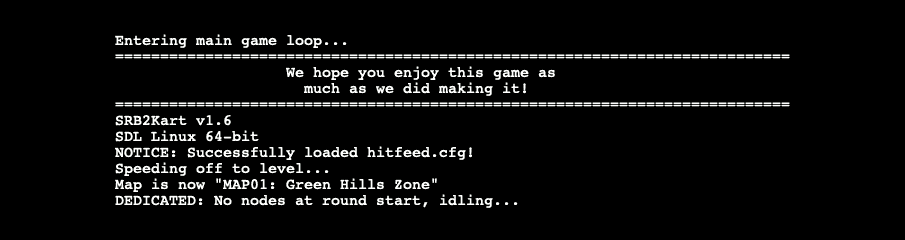
bash server/scripts/start.sh. - Follow any instructions until you see No nodes at round start, idling....
- Close the console.
If you're lucky, you won't need to do anything after running the start.sh script. However, the game may prompt you to hit Enter or take other actions while it starts up if it encounters minor problems. For example:
A PWAD file was not found or not valid.
Check the log to see which ones.
Press ENTER to continue
These are generally not serious problems, though occasionally an addon might not work. More rarely, the game may run very slowly (e.g. when I tried to use Weblorex's Nostalgia Pack v1.2) or crash completely (e.g. when I tried to use Bowler's Pack v2.0). Both examples are older map packs that work fine offline; I don't know what the problem is online. In cases like these, your only options are to do a debug deep-dive or just remove the offending addon(s).
Restarting the Game
If you change config or addon files on the server, or need to restart the game for any other reason, then follow these steps:
- Make your changes.
- Open the console as
kart. - Run
bash server/scripts/stop.sh. - If you updated addons: Run
bash server/scripts/update_addons.sh. - Run
bash server/scripts/start.sh. - Close the console.
Game Config
You can configure your server using a kartserv.cfg file (kart server config) in the config folder. This lets you run console commands when the server starts up instead of having to enter them by hand using the in-game console. For more info, see the unofficial wiki's pages on commands and variables.
Here's an example config file:
wait 10
password hunter2

// here's a comment in its own line;
// the game ignores all text between the double-slash and the end of the line

kartspeed 2 // here's a comment after a command, on the same line
// karteliminatelast off // here's a command that's deactivated by commenting it out
Some config commands must run after the game starts. Always start kartserv.cfg with the command wait 10 (wait 10 milliseconds) so the game's already running before it applies the rest of your config.
Updating game config
You can update your config file(s) at any time, but it won't take effect until you restart the game.
Examples
Here are some of the more useful commands available in the game itself (no mods needed) if you're just starting out:
showjoinaddress off- hides players' IP addresses in the VPS' console
password [password]- sets a password you can enter in the in-game console to gain admin status, e.g.
password hunter2 login [password]- use this in the in-game console (accessed by pressing `, or § on Mac) to gain admin status, e.g.
login hunter2 kartspeed 0/1/2- sets the game speed to 0/easy (Battle speed), 1/normal (multiplayer default), or 2/hard (Record Attack speed)
karteliminatelast on/off- sets whether players start to explode once most players have finished the race (defaults to on)
kartfrantic on/off- sets whether powerful items appear more or less often (defaults to off)
advancemap 0/1/2/3- sets how the next map's decided after each round: 0/repeat the same map, 1/next map in the list, 2/random, 3/vote (defaults to 3)
Many utility addons can be controlled using commands; some (e.g. Hostmod) are completely inactive until activated this way.
Addons
Addons let you add extra rules or content to the game. This includes characters, maps, tools, game modes, and even map config files. You can find almost everything in the addons section of the Sonic Kart message boards.
Updating addons
You can update your addons at any time, but it won't take effect until you restart the game.
Examples
Here are some addons you may find useful in multiplayer:
bonuschars.kart- the pack of bonus characters that comes with the game; useful if you don't already have extra characters
- Hostmod
- a broad and powerful set of quality-of-life improvements (see documentation for more details)
- Hitfeed
- a feed of attacks, displayed at the top of the screen
- Drift Gauge
- a meter that shows how close you are to charging turbos while drifting
Some addons (e.g. all Hostmod features) need to be activated using commands. Some of these make sense to write in your config file so they'll automatically be applied when the server starts; others make sense to use in the in-game console as and when you need them. You'll have to decide this case by case.
Map Config
You can tweak maps using Sonic Object Configuration files (SOC, file extension .soc). These are plaintext, so you can open them in any text editor, and they go in the addons folder (despite being config).
The base game has a massive SOC file for the vanilla tracks. Weirdly, it includes ~100 MB of map data, so don't mess with it. Instead, if you want to modify config for the vanilla tracks, use this copy of the vanilla SOC data.
Maps and map packs include SOC files to set their own config. You can find addons' SOC files by opening the .wad or .pk3 file in SLADE and just kinda rooting around.
If you want to customise config for vanilla or modded tracks, you can write your own SOC file. Any extra SOC files you load will overwrite the config for the base game and any map mods you have.
Updating map configs
You can update your SOC at any time, but it won't take effect until you restart the game.
Examples
The base game has a single SOC covering all the vanilla maps, and each extra map or map pack addon has its own SOC. Here's an example of the SOC data for the vanilla track Sand Valley:
Level 19
levelname = Sand Valley
SubTitle = Lightning Cup 4
Skynum = 6
Music = KMAP19
Weather = 0
Typeoflevel = Race
NumLaps = 3
RecordAttack = True
NoVisitNeeded = True
And here's the SOC data for the mod track Umbrella Rushlands, which is currently hidden via the Hidden = true property:
Level K0
Hidden = true
LevelName = Umbrella Rushwinds
SubTitle = Snail Cup 1
TypeOfLevel = Race
NumLaps = 2
SkyNum = 759
Weather = 1
Music = mapk0m
NextLevel = k1
RecordAttack = true
NoVisitNeeded = true
Most parts of this text are case-insensitive. For example, True and true are effectively the same thing even though one uses an upper-case T.
The properties are mostly self-explanatory (SkyNum is the skybox number) or irrelevant to multiplayer (RecordAttack sets whether the track appears in Record Attack). Some maps also have unique properties that let you control their scripts, e.g. the size of certain objects/entities on the map.
Editing map configs
Here are some basic, common things you might want to do:
- Hide maps you don't like
-
If you don't want a map to show up in-game, but it's vanilla or part of a map pack, then add
Hidden = true. - Include hell maps you do like
-
If you like a hell map and want it to appear like a normal map, then set
Hiddentofalse. - Remove distracting weather
-
If you're distracted by the weather on a particular map, then set
Weatherto0to remove it. - Change lap counts
-
If you think a track has too many or too few laps, then edit
NumLapsto be any whole number bigger than 0.
Don't include SOC data for maps you haven't actually loaded into the game. This creates a dummy map in the map list (you'll know it when you see it). Entering the dummy map crashes the game.
“My map doesn't load”
If you're sure the map file's on your VPS and there are no error reports in the console, then you might be looking at an ID collision. That means the “missing” map shares an ID with another map loaded later on.
This can be tedious to solve. You have to not only change one of the IDs in the SOC, you also have to open that map or map pack in SLADE or a similar editor and change the ID anywhere it's used in the map files—textures, music, terrain, the map's own SOC, etc. Luckily, this collision almost never happens.
Code
This is a reference for the four shell scripts and system service file, in case they get lost somehow.
install.sh
This installs docker, sets up the docker.srb2kart.service, and prepares the addons:
#!/usr/bin/env bash

# install required apps
sudo snap install docker

# copy kart service file to system services and enable it
sudo cp server/scripts/docker.srb2kart.service /etc/systemd/system/docker.srb2kart.service
systemctl enable docker.srb2kart

# update addons
bash server/scripts/update_addons.sh
start.sh
This downloads the game if it's not on the server already, then starts the game's docker and binds its config, addons, and luafiles volumes to the matching folders you transferred to your VPS:
#!/usr/bin/env bash

# install srb2k v1.6 via ellitedev docker, link docker volumes to custom files, and start running
sudo docker run -it --name srb2kart -p 5029:5029/udp \
-v /home/kart/server/config:/config \
-v /home/kart/server/addons:/addons \
-v /home/kart/server/luafiles:/luafiles \
ellite/srb2kart-server:1.6
stop.sh
This stops the game's docker (shutting it down):
#!/usr/bin/env bash

# stop game's docker (allows updates/restarts)
sudo docker rm -f srb2kart
update_addons.sh
This deletes all files (with file extensions) directly in the addons folder, then copies all the files in the subfolders back into the main addons folder.
#!/usr/bin/env bash

shopt -s extglob
shopt -s globstar
shopt -s nullglob

# copy all addons in subfolders of /addons into the main /addons folder
rm -f /home/kart/server/addons/*.*
allAddons=(/home/kart/server/addons/**/*.*)
if [ ${#allAddons[@]} -gt 0 ]; then ln /home/kart/server/addons/**/*.* /home/kart/server/addons; fi
docker.srb2kart.service
This sets up a service that listens for incoming connections for the game and, if the game isn't running, starts up the game on the server.
[Unit]
Description=SRB2Kart Server
Requires=docker.service
After=docker.service
# Ref: https://www.freedesktop.org/software/systemd/man/systemd.unit.html#StartLimitIntervalSec=interval
StartLimitIntervalSec=60s
StartLimitBurst=2

[Service]
TimeoutStartSec=0
Restart=on-failure
RestartSec=5s
ExecStartPre=/usr/bin/docker stop %n
ExecStartPre=/usr/bin/docker rm %n
ExecStartPre=/usr/bin/docker pull ellite/srb2kart-server:1.6
ExecStart=/usr/bin/docker run --rm --name %n \
	-v /home/kart/server/config:/config \
	-v /home/kart/server/addons:/addons \
	-v /home/kart/server/luafiles:/luafiles \
	-p 5029:5029/udp \
	ellite/srb2kart-server:1.6

[Install]
WantedBy=multi-user.target
Server template
This is the structure of the server folder:
- server
	- addons
		- characters
		- maps
		- other
	- config
		* kartserv.cfg
	- luafiles
	- scripts
		* install.sh
		* start.sh
		* stop.sh
		* update_addons.sh
		* docker.srb2kart.service
You don't need to do anything directly with the luafiles folder, but it still needs to exist so the docker can connect to it and add files later.
Cliff Notes
This is a checklist of the main instructions in the Walkthrough: